Spreadsheet Software

This week, we explored the usages of spreadsheet software. We found out what a spreadsheet software is and we can do with spreadsheet software. We learned about many functions and formulas that we can use in spreadsheet software to help us solve many real-life problems.

Spreadsheet Software

A spreadsheet is an interactive computer application for the organization, analysis, and storage of data in tabular form. Spreadsheets developed as computerized analogs of paper accounting worksheets. The program operates on data entered in cells of a table. Each cell may contain either numeric or text data, or the results of formulas that automatically calculate and display a value based on the contents of other cells. For example, you can use it to analyze your transcript or keep your budget and etc.


屏幕快照 2018-12-19 20.20.46.png
Zoho Spreadsheet


Different functions in a spreadsheet software

In class, we used Zoho spreadsheet to practice the different function in a spreadsheet. 

Firstly, we wrote down the subjects that we are taking and set the mark we get by using the RANDBETWEEN (bottom; top) function. An integer random number between integers bottom and top can be generated by this function.


屏幕快照 2018-12-19 20.26.32.png
RANDBETWEEN


Then, we wanted to calculate how many marks I got in total, so we used the SUM function. This function can calculate the sum of a range of numbers that you select. It ignores any text or empty cell within the range.


屏幕快照 2018-12-19 20.29.41.png
SUM


We also wanted to know how many subjects there were in total, so we used the COUNT function which can count the number of the non-empty cells. So what if you want to know the number of the empty cells? You can use COUNTBLANK function which can count the number of the empty cells. What if you want to know the number of cells that contain a certain value such as how many 100 you got? You can use COUNTIF function which can count the number of the values that satisfy a certain condition.


屏幕快照 2018-12-19 20.35.41.png
COUNT


Now we had both the total marks and the total subject numbers, we could know the average marks I got. We could divide the SUM number by the COUNT number to get the average marks. However, there is another smarter way to calculate the average. We used the AVERAGE function to do that! We could just select all the cells that contain the marks, and the spreadsheet software can calculate the average marks for you!


屏幕快照 2018-12-19 20.39.41.png
AVERAGE


The average mark may have a lot of decimal places, and you may not want to see that much decimal places on your transcript. So what can you do? You can use the ROUND function, ROUNDDOWN function, and ROUNDUP function. The ROUND function can round a number to a certain precision. ROUNDDOWN function can round a number down, toward zero, to a certain precision. ROUNDUP function can round a number up, away from zero, to a certain precision. Like this:


屏幕快照 2018-12-19 20.57.27.png
ROUND, ROUNDDOWN, and ROUNDUP


Do you want to know which subject is your strongest subject and which one is the weakest? Use MAX and MIN function! These functions can tell you the maximum/minimum of a list of numbers.


屏幕快照 2018-12-19 20.47.23.png
MAX and MIN


Now, do you want to know how you perform on a certain subject compare to on other subjects? For example, how I perform on CS compare to on other subjects. You can use the RANK function which can tell you the rank of a number in a list of numbers, like this:


屏幕快照 2018-12-19 21.01.58.png
RANK


So then we know that CS is my strongest subject (not true!) Using IF and AND functions, we can even know whether I pass my CS or not and how much I get when I convert my CS marks to IB standards.


屏幕快照 2018-12-19 21.04.08.png
IF and AND


Now let’s talk about something other than grades! We can use the ABS function to know the absolute value of a certain number. For example, we can use ABS when we are recording our spending which is always negative.

IFERROR function is able to return one of the two values, depending on the first value. It can be used to check if a certain value has got a correct formula to derive it.

Finally, we used CONCATENATE function to write a very interesting story by the whole class! Each of us wrote a little part of the story, and we combined everyone’s parts by using this function. 


屏幕快照 2018-12-19 21.16.34.png
CONCATENATE


Conclusion

These are the functions that I learned in this week’s class. Aren’t they incredibly useful? Now we can do so many things with spreadsheet software!

Classification of Software

In this week, we learned about softwares. Although the term “software” has always sound very familiar to me, I had never knew what it really meant. Now, I finally got a chance to see what on earth “software” means. A software is a collection of instructions which tells the computer what to do.

Hierarchy of Software

Besides the definition of software, I also learned that actually there are so many types of software and there is even a hierarchy of software. Softwares can be roughly divided into two main categories——System Software and Application Software.


屏幕快照 2018-11-28 19.12.29.png
Hierarchy of Software (I really tried, but this is really the only complete diagram I can find)


System Software

System software is a software designed to operate the computer hardware and to provide a platform for running application software. Under system software, there are four smaller categories——operating systems, library programs, utility programs and programming language translator.

An operating system is system software that manages computer hardware and software resources, provides common services for computer programs and makes it easy for the users to use. An operating system is necessary for application programs to communicate with the computer. The operating system is like the interface between application programs and the computer. 


operating system
Operating System


For example, MacOS is an operating system developed by Apple Inc, and it looks like this:


macos-high-sierra-get-software-hero.jpg
MacOS


A library program is a collection of code and data that can be used by other programs. It helps programmers when developing a software. For example, Vorbris is a library program headed by the Xiph.Org Foundation.


450px-Ogg_vorbis_libs_and_application_dia
Library Program—-Vorbis


Utility programs are programs that perform a very specific task related to working with computers, such as analyzing, configuring, optimizing or maintaining. It is usually very small but very powerful at it’s specific task. For example, Keychain is the password management utility software developed by Apple Inc. I personally rely on it a lot.


Keychain_Access_Icon.png
Utility Program—-Keychain


Programming language translator translates source code into machine code so that people can understand. There are three types of programming language translator——assembler, compiler and interpreter. Assemblers become less prevalent nowadays than compilers and interpreters. It basically translates computer codes into binary form. We watched a video which told us the difference between compiler and interpreter and how they work vividly. A compiler translates source code all at once. It takes a little time to process but then it would work really fast. However, it doesn’t give you the chance to change anything if you make a mistake. As for interpreters, an interpreter translates source code once at a time. It may take some time to process each line each time, but you can make changes immediately if you find something wrong. 


Language-Translator-Programs
Programming Language Translator


Application Software

Besides from system software, there is also application software. It is computer software designed to perform a group of coordinated functions, tasks, or activities to perform specific tasks. There are three categories of application software——general purpose application software, special purpose application software and bespoke application software.

A general purpose application software can be used for many different tasks. For example, a word processor such as pages is a general purpose application software. You can use it to deal with documents, create a table or even a poster.


pages.png
General Purpose Application Software—-Pages


A specific purpose application software can be used for only one specific task. For example, a web browser such as google chrome is a specific purpose application software. You can only use it to retrieve a web page and display it on your computer.


1200px-Google_Chrome_icon_(September_2014).png
Specific Purpose Application Software—-Google Chrome


A bespoke application software is tailor made for a group of specific users or a specific purpose. For example, the students and teachers in the national department of BNDS use a bespoke application software called “aiyunxiao”.


爱云校
Bespoke Application Software—-Aiyunxiao


Our Presentation about Word Processors and Web Browsers

We also did a presentation about word processors and web browsers which allow us to have a closer look at two specific types of software. Here’s a link to our presentation:

屏幕快照 2018-11-28 20.19.51.png

All in all, I really like this week’s class. Now I have a clearer idea about what software means instead of just using the term like anyone else without knowing what it really refers to.

Flowchart

In these two weeks, we were introduced to flowcharts——a brilliant way to use a diagram to illustrate the sequence of operations to be performed to solve a problem. We learned how to draw a flowchart by learning the symbols of flowcharts. Then we practiced our skill in making flowcharts by doing some exercises and making a poster of a flowchart to solve a problem that we face in our daily life. In addition, we also did the typing test for this month.


Flowcharts.png
An Example of a Flowcahrt


Flowchart Symbols

The symbol for “start” or “end” is an oval or a circular rectangle. Only one flow line should come out of a start symbol, and no flow line should enter it. Only one flow line should enter an end symbol, and no flow line should come out of it.


Start and End.png
Start or End Symbol


The symbol for “process” is a rectangle. Only one flow line should come out of a process symbol.


Process Symbol.jpg
Process Symbol


The symbol for “input” or “output” is a parallelogram.


input and output symbol.png
Input or Output Symbol


The symbol for “selection (decision)” is a diamond shape. Only one flow line should enter a selection symbol, but two flow lines (one for “yes” and one for “no”) should come out of the decision symbol.


Decision Symbol.png
Selection (Decision) Symbol


There should be a “trigger” to start the flowchart. The direction of the flow should be top to bottom and left to right.

IF, IF-ELSE, IF-ELSE-IF, Nested IF, and Looping (While and Do-While)

IF and IF-ELSE statements in the pseudocode can be represented in a flowchart by a selection symbol. For IF statement, one of the two flow lines that come out of the symbol goes to an outcome while the other goes directly to end symbol. For IF-ELSE statement, both of the two flow lines go to two separate outcomes and then goes to end.


For IF-ELSE-IF statements, there are several selection symbols. The flow line which represents “yes” goes to an outcome while the flow line which represents “no” go to another selection symbol. The same process is repeated until the last selection symbol. For the last selection symbol, “no” also goes to an outcome. Then, all the outcomes go to the end symbol.


IF-ELSE-IF statement.png
IF-ELSE-IF Statement


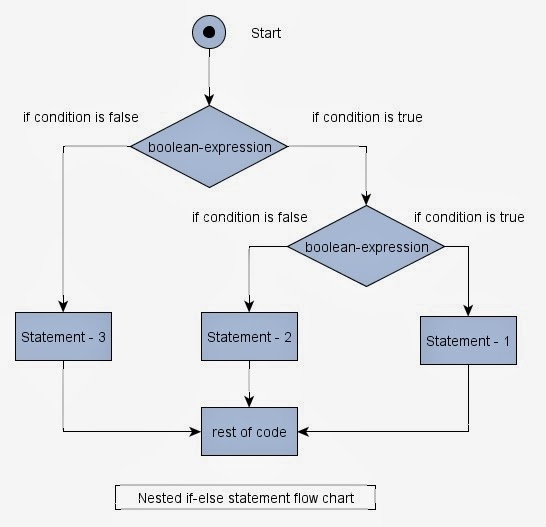
The difference between IF-ELSE-IF statements and Nested IF statements is that, for IF-ELSE-IF statements, choice “no” goes to another selection symbol, while for Nested IF statements, the answer “yes” goes to another selection symbol. The answer “yes” represents “if inside if”, and that’s why this kind of statements are called “Nested IF statements”.


Nested IF Statement.jpg
Nested IF Statement


In While loop, the decision symbol is at the begin of the loop block and the loop doesn’t stop until the answer is no. The condition is first tested and then the block of code is executed if the test result is true. In DO-While loop, the decision is at the end of the loop block and makes obligatory to enter the loop at least one time. The code is first executed and then the condition is checked.  The next iteration is executed if the test result is true.


While vs DO-While.jpg
While Loop v. DO-While Loop


Flowchart activities/homework

We practiced drawing some flowcharts as well. We drew the flowcharts for the pseudocode we wrote last week. We, as groups,  also designed some posters of flowcharts to solve a problem that we have in daily life. Our group chose to solve the problem of “Do I Stay Up Late?” 


fullsizeoutput_1201.jpeg
Our Flowchart Poster—-Do I Stay Up Late?


Firstly, we ask the user if they have any task remained to be done that day. If the answer is no, then clearly they don’t need to stay up late. If the answer is yes, we designed a loop to calculate the total time required to finish the tasks. Then we ask the self-study time the user has the next time. If the time required to finish the tasks is less than or equal to the self-study time, we suggest the user study tomorrow. Otherwise, we ask the user if they will get up early tomorrow to study. If the answer is yes, we also suggest the user study tomorrow. If the answer is no, we ask the user if they will stay up late tomorrow. We designed another loop which keeps asking this question until the user promises that they won’t stay up late the next day. Then, we think they can/should stay up late.

Expressions for Algorithm

In this week’s class, we learned the expressions for algorithm. We watched a video seeing many examples of algorithm. We discussed how to design an algorithm and how to understand the problem. We also studied four different types of expressions for algorithm, and we learned deeper into the Pseudocode.

Algorithms in “The Secret Rules of Modern Living: Algorithms”

The video “The Secret Rules of Modern Living: Algorithms” presents a lot of real-life examples of algorithm, and I found many of them very smart and interesting.

Euclid’s Algorithm

The oldest algorithm is to solve math problems. This algorithm is called the “Euclid’s Algorithm” which is designed by the Greek mathematician Euclid to find the greatest common divisor geometrically. For example, if you want to find the greatest common divisor of 150 and 345, then you can build a rectangle in the size of 150 cm × 345 cm. Firstly, you filled the rectangle with a square with a side length of 150cm, then a 150cm × 195cm rectangle is left. Secondly, you filled the remained rectangle with a square with a side length of 150cm again, then a 150cm × 45 cm rectangle is left. Thirdly, you filled the remained rectangle with a square with a side length of 45cm, then a 105cm × 45cm rectangle is left. You always filled the rectangle with a square with a side length equals to the length of the shorter side of the rectangle until the whole rectangle is filled with squares, the greatest common divisor is the side length of the last square. In this case, the greatest common divisor is 15.


屏幕快照 2018-10-24 19.27.39.png
Euclid’s Algorithm


The Chili Game

A professor of Oxford also used an algorithm to play a mathematical game called “the chili game” with his students. There are 13 pieces of chocolate and 1 chili in the glass. One person can take 1-3 pieces of chocolate each turn. The one who gets only the chili loses the game and has to eat the chili. The professor goes first and he always wins. His secret to success is actually an algorithm. He sorts the chocolate into groups of four so there are three groups of four pieces of chocolate. He always takes one piece of chocolate at first. Then following the algorithm, he always takes (4 minus the number of pieces his opponent takes) pieces of chocolate. For example, if his opponent takes 3 pieces, he would then take 1 piece of chocolate. The algorithm he uses always allows him to win and lefts the chili to his students. The design of this algorithm actually involves decomposition——a type of computational thinking as he groups the chocolate into groups of four.


屏幕快照 2018-10-24 19.16.20.png
The Chili Game


PageRank Algorithm

The PageRank Algorithm allows Google to put the most important page the users are likely to choose on the top when they are searching for something. The PageRank Algorithm ranks the importance of pages by measuring the incomes of links and the rank of the page that links to this page. It’s easier to explain this algorithm by comparing it to a football time. The passes between the players are the incomes of links. The more passes a player receives, the more important he/she is. However, that’s not enough. The passes from a popular player, who receives a lot of passes, weighs more than the passes from a less popular player, who receives fewer passes. When this applied to search engine, it works like this: if a page’s link is included in many other pages, this page is very important; if this page’s link is included in many other important pages, this page is even more important than it is before.


屏幕快照 2018-10-24 19.28.36.png
PageRank Algorithm


Sort Algorithm

Sorting data in the right order is also very important, and a good algorithm can make it a lot easier. There are many types of sort algorithm, such as the bubble sort algorithm, the merge sort algorithm, and many others. The merge sort algorithm works much faster than the bubble sort algorithm.

The bubble sort algorithm suggests people sort things firstly in pairs and swap them over if they are in the wrong order. You need to keep repeating this process until everything is in the right order.


屏幕快照 2018-10-24 19.42.38.png
Bubble Sort Algorithm


The merge sort algorithm involves divide and conquer. Firstly, you need to divide all the objects into small units. Then while you are merging them back into larger groups, you put them in the right order.


屏幕快照 2018-10-24 19.45.08.png
Merge Sort Algorithm—-Divide


屏幕快照 2018-10-24 19.45.22
Merge Sort Algorithm—-Conquer


Matching Algorithm

The Matching algorithm helps people to match people. It not only helps people to find their potential soulmates but also saves people’s life by matching the organ donors to the receivers. In the video, they try to match 4 poker queens to 4 poker kings. Firstly, they put the queens next to their first choice king. If there are more than one queens next to a king, then the queen who ranks higher in the king’s list stays while the other queens move to their second choice. This process is kept repeating until everyone gets the best they can get.


屏幕快照 2018-10-24 19.47.58.png
Matching Algorithm


Designing an Algorithm and Understanding the Problem

After seeing all these examples of algorithms, I guess everyone can get a sense of what algorithm is. Algorithm is a set of step-by-step clear instructions in the right order to solve problems in a limited time interval and in the most efficient way. We all can design an algorithm to help us solve problems. However, before we design an algorithm, we need to understand the problem that we are trying to solve. We need to know the inputs and outputs of the problem. We should be clear about the order of the instructions to solve the problem and what decisions need to be made in the problem. We also need to examine if any areas are repeated. These are some aspects to look at to see if you understand the problem fully before designing an algorithm to solve it. When we are designing an algorithm, we should ask ourselves about the big picture (i.e. the final goal) and the individual areas of the problem.

Expressions for Algorithm

It’s not enough to only design an algorithm, but we need to express it so that it can be used. There are mainly four types of expressions for algorithm: natural language, flowchart, pseudocode, and programming language. 

Natural language is just simple English. It’s usually quite verbose and ambiguous. There are three steps when expressing in natural language: fetch an instruction, decode the instruction, and then execute the instruction. For example, “displays the number ‘3’ four times” is expressed in natural language.

Flowchart is a formalized graphic representation. We didn’t go very deep into this kind of expression, but I’ve seen many flow charts on the wall of the Computer Science classroom. A flow chart would look like this:


1200px-LampFlowchart.png
Flowchart


Pseudocode is a generic artificial language. We learned a little more about pseudocode. Pseudocode lies on the middle ground between natural language and programming language. It’s understandable to human and describes a task or algorithm but not as ambiguous as natural language. It is a planning tool that allows us to design the flow of a program prior to writing the code. Here is an example of pseudocode:


66e8f783-6e09-404c-9e59-8c291d56dc46_pseudocode1.jpg
Pseudocode


Programming language is the artificial language to communicate with the computer system, we didn’t reach this part deeply yet.


Capture.png
Programming Language


Conclusion

We had a deeper understanding of algorithms through this week’s class by watching the video about algorithms in real life, discussing how to design an algorithm and understand the problem beforehand, and learning the expressions of algorithm. I’m really looking forward to practicing these skills about algorithm and trying to write some pseudocode.

Introduction to Algorithm

In this week’s class, the term “algorithm” was introduced to me for the first time. We learned what algorithms are, their characteristics, and computational thinking.

The Term “Algorithm”

Algorithm is a set of step-by-step clear instructions in the right order to solve problems in a limited time interval and in the most efficient way. 

We did some activities in class to understand this term better which Demi acted as a robot and I as the person who gave instructions telling Demi the robot what to do. Demi’s eyes were covered which means she couldn’t see anything, and I had to use words to tell her what to do to achieve the goal of giving the water bottle to Lily. After the activities, we figured out some ways to improve my instructions so that they could be clearer and more unambiguous.

We did another activity on paper which we needed to figure out a routine to visit the city in the most efficient way without missing any sites or visiting a site for more than once. We then recorded this routine so that other people can read these instructions and know what to do.

By these two activities, we were able to have a deeper understanding of the term “algorithm”.

Algorithm

The Characteristics of an Algorithm

So what makes an algorithm an algorithm? An algorithm would have certain characteristics which make it an algorithm. The characteristics of an algorithm include finiteness, definiteness, input and output, and effectiveness. 

Finiteness means that an algorithm must always terminate after a finite number of steps. It can’t keep running forever.

Definiteness means that each step of an algorithm must be precisely defined and that the actions to be carried out must be rigorously and unambiguously specified for each case. Otherwise, the computer wouldn’t know what to do. For example, when I was giving instructions to Demi the robot, I used words such as “Move forward a little bit.” In fact, words like that can’t actually work for a real computer because a computer can’t understand what the word “a little bit” actually means. The characteristic “definiteness” also reflects in the definition of the algorithm by the word “clear”.

Input means the quantities which are given to it initially before the algorithm begins. Output means the quantities which have a specified relation to the inputs. An algorithm has zero or more inputs and zero or more outputs.

Effectiveness means that all of the operations to be performed in the algorithm must be sufficiently basic that they can in principle be done exactly and in a finite length of time. If an algorithm is not effective, then it’s useless. So the instructions given by the algorithm must be something that is able to be done in a limited time interval with efficiency.

Algorithm Magic

To help us better understand algorithms, we played a magic called “intelligent paper”. The paper is more intelligent than anyone in our class. We asked two people to play “cross and tick”. One person did whatever the paper told him to do and the other person did whatever the people in our class told him to do. If you always listened to the paper, you would never lose because the paper is more intelligent than anyone in our class.

In fact, it’s the programmer who wrote the instructions on the paper and the person who won simply followed these instructions. The instructions are algorithms. We further discussed the concept of Artificial Intelligence which was about whether it’s the programmer who is intelligent or the paper.

Algorithm Magic—-Intelligent Paper

Computational Thinking and the LightBot Game

Computational thinking includes decomposition, abstraction, pattern recognition and algorithm. We practiced the computational thinking by playing the LightBot Game.

In the LightBot Game, we needed to give instructions to the little robot so that it can light up the bulb on each blue cube, and the number of steps is limited. By doing that, we needed to firstly decompose and abstract the task into several different movements. As the steps are limited, we needed to recognize a pattern so that the same movement can be simply repeated. At last, we were able to figure out the solution and expressed it as algorithms so that the little robot could follow.


ComputationalThinkingProductLogo.png
Computational Thinking


LightBot Game

Conclusion

After this week’s class, we know what algorithm and computational thinking are. We examined the characteristics of algorithms and we learned that from several interesting activities. We practiced our computational thinking by playing the LightBot Game as well.

Citation

[1] Gupta, Nidhi. “Algorithm and its characteristics.” Home, Biyani Institute of Science and Management, 26 Sep. 2016, bisma.in/algorithm-and-its-characteristics/. 19 Oct. 2018.

[2] “Computational Thinking.” Home, Computational Thinker, http://www.computationalthinkers.com/product/computationalthinking/. 19 Oct. 2018. 

[3] “Algorithm.” Wikipedia, en.wikipedia.org/wiki/Algorithm#/media/File:Euclid_flowchart.svg. 19 Oct. 2018.

Inside a Computer and Binary

In this week’s classes, we learned what is inside a computer to see how it works by going deep into the role of CPU and the binary system. To understand that better, we did two roleplaying activities to imitate how the CPU and the binary number system work. We also practiced how to convert binary to and from decimal.

Functions of CPU, CU, ALU, Register, and Bus

CPU refers to the Central Processing Unit which is like the brain of a computer. It fetches and executes a sequence of stored instructions called a program from the memory. CU refers to Control Unit which decides and tells other parts of the CPU what to do. It also controls the work time and the instructions sent to the processor and peripheral devices. ALU refers Arithmetic Logic Unit which does the calculations (arithmetic) and deals with logic in a computer. The Register functions as a memory storage location within a CPU but it can only store memory temporarily. The Bus carries the message to communicate with other parts of the computer.

How the CPU Works?

How Does a Computer Work

When you click your mouse, you send the input message to the computer. When your message is received, it would be handled by the basic input-output subsystem. This subsystem would then send a message to the CPU to process it. The CPU would fetch and execute these instructions from memory. Within the CPU, CU fetches information from the Register and memory and tells ALU what to do through the Bus. After ALU has done its calculations, it would send the result by the Bus to display it on your screen as the output.

How a Computer Works?

Binary Number System

Before talking about the binary number system, it’s quite crucial to learn about the meaning of data and information. Data can be seen as the raw materials which are the binary numbers computer works with. Information is words, numbers and pictures that human can understand. It’s unnecessary and would take too much space for computers to use the language human use, so computers use binary number system as data and convert it into information which human can read. Binary number system expresses number with only 2 symbols: generally 1 and 0. It is a positional notation with a radix of 2.

Binary Number System

How to Convert Binary To and From Decimal

  1. Write down the binary number,
  2. List the powers of two from right to left,
  3. Write the digits of the binary number below their corresponding powers,
  4. Add the powers which have number “1” below them,
  5. The final answer is the decimal way to express the binary number.

For example, for binary number 110011:

25

24

23

22

21

20

64

32

16

4

2

1

1

1

0

0

1

1

As there is the number “1” below 64, 32, 2 and 1, we add them together: 64+32+2+1=99, which 99 is the decimal way to express 110011.

Roleplaying Activities

To understand how the CPU and the binary number system better, we did 2 roleplaying activities to imitate how they work. 

In the first roleplaying activity, I played the role of the Display. I filled the boxes followed the instruction that the Bus carried to me. There were many times I found that I couldn’t fill the boxes that they told me to fill because they may not exist on the table I received or I had already filled them, but I couldn’t say anything to tell CU and ALU the error. After the roleplaying activity, I really get what it means by different components of CPU do their jobs separately and how each component communicates with the others through the Bus. I realized the importance of a pre-set method to handle errors such as what I had met. 

In the second roleplaying activity, I played the role of an ordinary audience instead of a volunteer. I watched how the addition of the dots can represent a number as the binary number system can do. Then we flipped cards to represent the “1” and “0” in the binary system to count numbers from 1 to 20 with our partners. I started to learn how to convert a binary number to decimal through these activities.

ASCII and UNICODE research

ASCII, American Standard Code for Information Interchange, is a character encoding standard for electronic communication. ASCII codes represent text in computers, telecommunications equipment, and other devices. Originally based on the English alphabet, ASCII encodes 128 specified characters into 7-bit integers. 95 of the encoded characters are printable: these include the digits 0 to 9, lowercase letters a to z, uppercase letters A to Z, and punctuation symbols. In addition, the original ASCII specification included 33 non-printing control codes which originated with Teletype machines. For example, lowercase i would be represented in the ASCII encoding by binary 1101001 = hexadecimal 69 (i is the ninth letter) = decimal 105.

ASCII Character Chart

Unicode is a computing industry standard for the consistent encoding, representation, and handling of text expressed in most of the world’s writing systems. The standard is maintained by the Unicode Consortium, and as of June 2018 the most recent version, Unicode 11.0, contains a repertoire of 137,439 characters covering 146 modern and historic scripts, as well as multiple symbol sets and emoji. 

A Clip of Unicode Character Chart

ASCII can encode 128 characters while Unicode can encode 137,439 characters. ASCII is based on English while Unicode allows computers to be multilingual since it can express text in most of the world’s writing systems. It is very interesting to notice that the first 128 Unicode code points are the ASCII characters.

Blog and Computing System

I, unfortunately, missed the first class of this week since I had a high fever. However, luckily, my presentation group is very inclusive and my group mates told me what happened in this class. We finally started to learn about what is a computer, its history, computing system and the model of the computing system.

I found that I already set up my blog with the category, menus, and posts attached to the categories. I also entered my information in the Student Information database on the class website. I then took a careful look at this class’s slides to see the main points of the class and watched the video that I missed. 

What is a Computer? Who Invented the First Computer?

A computer includes the computing system, hardware and software. The computing system means that the hardware, the software and the data interact to solve problems. The hardware is the physical elements of a computing system while the software is the programs that provide instructions for the computer to execute. For example, a keyboard is hardware while an app is software. The other video showed me the history of computers. The conclusion is that there is not a single person who invented the first computer but many people keep influencing each other to keel developing computers. Even though computers are very prevalent in our daily life, I never really thought about what is a computer or the history of it. After learning the definition of a computer, I can have a look at my computer and see which part of it is hardware, which part is software and how they interact with data to solve problems and to be a computer.

What is a computer?

Layers of Computing System

As mentioned above, the computing system means that the hardware, the software and the date interact to solve problems. In addition, different layers of the computing system work together to solve problems. The innermost layer is the information layer. The information on a computer is represented using a binary number system. The next layer is the hardware which is the physical elements of a computer. The third layer is the programming layer which deals with software. The fourth layer is the operating system which helps us interact with the computer system and helps hardware, software and data interact. The fifth layer is the application layer which uses the computer to solve specific real word problems such as playing a game. The outermost layer is the communication layer which helps us to communicate with other computers. For example, the communication layer allows us to use the social media.

Six Layers of Computing System
Layers of a Computing System

The General Model of All Computing Systems

The model of all computing systems explains how computing systems work in very simple three words which are “input—process—output”. A computer receives an input, processes the information and then performs an output. For example, when you text your friend, you type the text and press “send” which is the input. Then the phone processes the information. Finally, your friend receives the text which is the output.

Input—-Process—-Output

Computing Hardware——Presentation

Hardware is part of a computing system. We then learn further about it by doing a presentation about hardware using real-life examples. Our group introduced the output devices. This presentation was my first presentation this semester with new classmates and I was very excited about it. We needed to introduce eight devices and there are four people in our group so each person would introduce two devices. Mine are braille displays and projectors. We read the presentation requirements and rubric together very carefully. We controlled our presentation time carefully within 8 minutes and our information resources were all from reliable websites. We made our slides using bullet points together on Zoho. As we weren’t quite sure about the citation format, we used the MLA format to make our citation. I’m very happy that our group was very cohesive and that my group mates were very cooperative and reliable. I also learned a lot about other types of hardware devices from other groups’ presentation. 

https://docs.zoho.com/show/publish/a2edg16addab3b78b493dad2b776bc7abbda1

Second Week Reflection (2018.9.10-2018.9.14)

In the two computer science classes of the 2nd week, our teacher explained to us all the crucial things that we need to know for this semester’s computer science class. In the first class, he introduced how he is going to mark our participation marks, the class website and the typing lessons. In the second class, he helped us to set up our blogs with proper categories, menus and submenus. He also taught us how to submit our blog post properly as a link on the class website.

We scanned a QR code to enter our account for the website called Dojo which records our participation marks. Then, we all signed up for an account on the class website. At the end of the class, as many people can’t enter our class in the typing lessons, we spent some time figuring out how to enter the class with an already created account. Luckily, I had already entered the class. Then we were informed that there would be a typing exam at the end of September and we must reach the speed of 20 wpm to get a full mark. I don’t think it’s very hard to achieve that since I can type relatively fast. We also have to complete 7 lessons in the typing lesson website. I have already finished them now. I also did another typing test by myself at the end of the class.

Screen Shot 2018-09-14 at 13.15.36
Typing Test Result

In the second class,  we set up our blog sites. I only created one menu called “Pre-IB” and one submenu called “Computer Science” under it. I deleted the menu “Home” which was the default and set “Computer Science” as default. Although my blog looked a little bit too simple and somehow boring, I think it’s kind of clean and organized. When I submitted my blog post link, I didn’t set it as “link” at first. However, fortunately, our teacher used my submission as an example to show the class how to set the link as a “link” and then submit it.

Screen Shot 2018-09-24 at 11.15.58
Blog’s Menus and Categories

Intro to Pre-IB Computer Science

There was only one computer science class this week due to the photo takings, and this class was our first computer science class which I was very excited about.

In this class, I learned everyone’s name as everyone introduced themselves. I got to know who is our computer science teacher. I learned some basic information about pre-IB computer science class such as the content of the class, some requirements, and etc. We appointed a class assistant. We were also required to set our computers in English, install multiple internet browsers, create several accounts, and test our typing skills. I found that I can type 57 words per minute, but I’m not sure whether this score is good or not. I also tried to type when the keyboard was covered, and I can type 28 words per minute. I found that I could type fluently sometimes when the keyboard was covered, but if I stuck for once, I would be stuck for a while.

As for my expectations from the pre-IB computer science class, firstly I hope that I can have a clearer mind on how the IB computer science class would be and how computer science can be applied in real life after having this course so that I will be able to decide whether I want to take it or not when I turn to grade 11. Secondly, I hope to learn some basic computer skills. I also want to know at least what programming is as I have literally no idea about it when people mention it. Thirdly, I wish to know some latest news in the world of computer science or technology because I believe that modern technologies such as robotics are developing rapidly and becoming increasingly important and it is vital not to fall behind the times.

屏幕快照 2018-09-04 11.35.29
Screenshot of the Typing Race
屏幕快照 2018-09-04 11.35.26
Screenshot of the Typing Race
屏幕快照 2018-09-04 11.30.41
Screenshot of the Typing Race
屏幕快照 2018-09-04 11.29.29
Screenshot of the Typing Race
屏幕快照 2018-09-04 11.29.05
Screenshot of the Typing Race
IMG_2627
Slide from the Class
IMG_2626
Slide from the Class
IMG_2624
Slide from the Class

1st Week Reflection (2018.9.3-2018.9.7)

There was only one computer science class this week due to the photo takings, and this class was our first computer science class which I was very excited about.

In this class, I learned everyone’s name as everyone introduced themselves. I got to know who is our computer science teacher. I learned some basic information about pre-IB computer science class such as the content of the class, some requirements, and etc. We appointed a class assistant. We were also required to set our computers in English, install multiple internet browsers, create several accounts, and test our typing skills. I found that I can type 57 words per minute, but I’m not sure whether this score is good or not. I also tried to type when the keyboard was covered, and I can type 28 words per minute. I found that I could type fluently sometimes when the keyboard was covered, but if I stuck for once, I would be stuck for a while.

As for my expectations from the pre-IB computer science class, firstly I hope that I can have a clearer mind on how the IB computer science class would be and how computer science can be applied in real life after having this course so that I will be able to decide whether I want to take it or not when I turn to grade 11. Secondly, I hope to learn some basic computer skills. I also want to know at least what programming is as I have literally no idea about it when people mention it. Thirdly, I wish to know some latest news in the world of computer science or technology because I believe that modern technologies such as robotics are developing rapidly and becoming increasingly important and it is vital not to fall behind the times.


IMG_2624IMG_2625IMG_2626IMG_2627屏幕快照 2018-09-04 11.29.05屏幕快照 2018-09-04 11.29.29屏幕快照 2018-09-04 11.30.41屏幕快照 2018-09-04 11.35.26屏幕快照 2018-09-04 11.35.29